
Walkthrough
The Tabberwocky Tab Defenestrator (TTD) is your stalwart ally against the chaos of too many tabs in too many windows. It's a toolset for rapidly identifying and removing the tabs you no longer need, and organizing the rest.
TTD's core features are as follows:
- Close duplicate tabs across all windows
- Close all tabs by site
- Run combined cleanup actions
- Merge all windows
- Sort tabs by last accessed
- Sort tabs alphabetically by site
- Gather all tabs from a site into a dedicated window
- Toggle between current-window and all-window views
- Toggle tab URL visibility
The extension uses a side panel interface. The side panel updates in real time when tabs are opened, closed, or moved. The count displays the number of tabs or windows a respective action will impact. For example, if there are 8 additional Chrome windows, the Merge Windows button will be accompanied by an 8.







Close Duplicate Tabs in all Windows
Click the Close Duplicates button to remove, in a single glorious sweep, all duplicate tabs from all windows.
- Hover your mouse over the Close Dupes button to see a list of the doppelganger tabs.
- The duplicates sweep keeps your most recently accessed tabs and closes the other duplicates.
- Google Workspace docs are distinguished by document ID rather than their full url.
Close by Site
Click a site's icon in the site control panel to close all associated tabs. The site control panel lives at the bottom of the side panel.
How Close by Site Works
Each icon represents a different site or, for some ecosystems, distinct products. For example, if you had multiple Gmail and Google Docs tabs open, you could close all your Gmail tabs without touching the docs you're working on.
- Depending on the window view toggle, badge counts reflect either the current window or all windows.
- The grid updates in real-time as you open and close tabs.
- Google Workspace products, along with select Google products, are treated as separate sites.
If you change your mind after closing tabs
To restore tabs that you closed, use Command + Shift + T (Mac) or Ctrl + Shift + T (Windows/Linux).
Combined Actions
Click to activate both actions: Close Duplicates and Merge Windows.
- Badge count shows total number of available actions (duplicates + windows).
- Upcoming feature: customizable combinations (e.g., merge + sort by last accessed).
Merge all Windows
Click Merge Windows to consolidate everything from everywhere all at once.
- The count indicates the number of windows that can be merged into your current window.
- Tabs keep their original order.
- The active tab in your current window remains selected through the merge.
Sort by Most Recent
Click Sort by Most Recent to reorder tabs in Chrome based on the time you last accessed them.
- Sorts tabs in descending order, most recent tabs first.
- Helpful for finding your way back after sidequests or climbing out of rabbit holes.
- As with Sort by Site, the sorting applies to either the current window or all windows, depending on the Window View toggle.
Sort by Site
Click Sites A-Z to sort your tabs in Chrome alphabetically by site.
- Sorting applies to either the current window or all windows, depending on the Window View toggle state.
Gather by Site
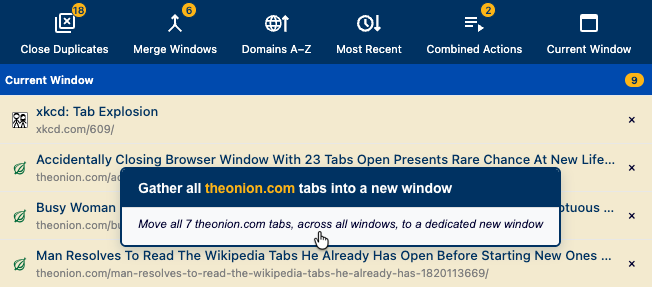
Right-click a side panel tab to move all tabs from that site into a new window.
Window View Toggle
Display in the side panel the tabs for your current window or all windows.
- Current Window: Shows only tabs in the currently focused window.
- All Windows: Shows tabs from every open Chrome window.
- The toggle also sets the scope for the sort buttons and the Close by Site grid.
Toggle Tab URL Display
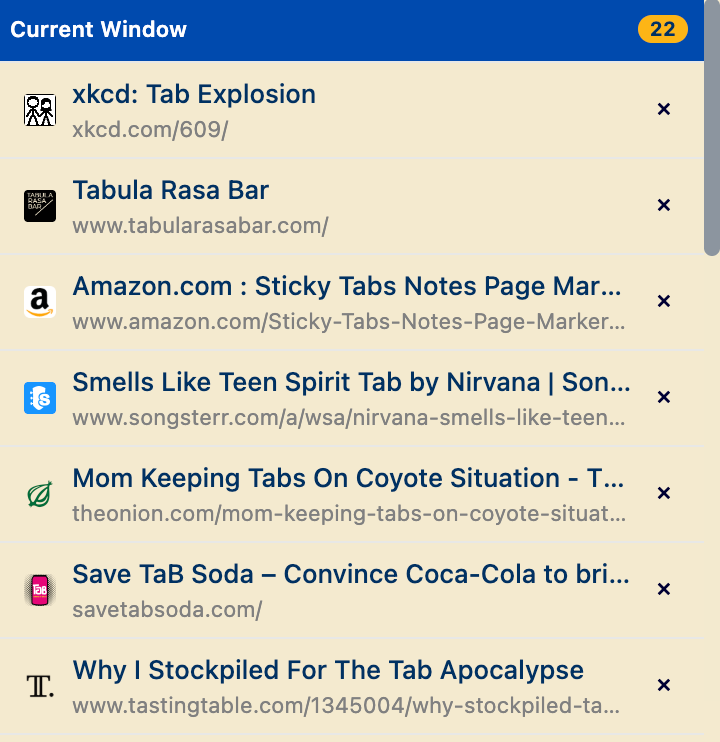
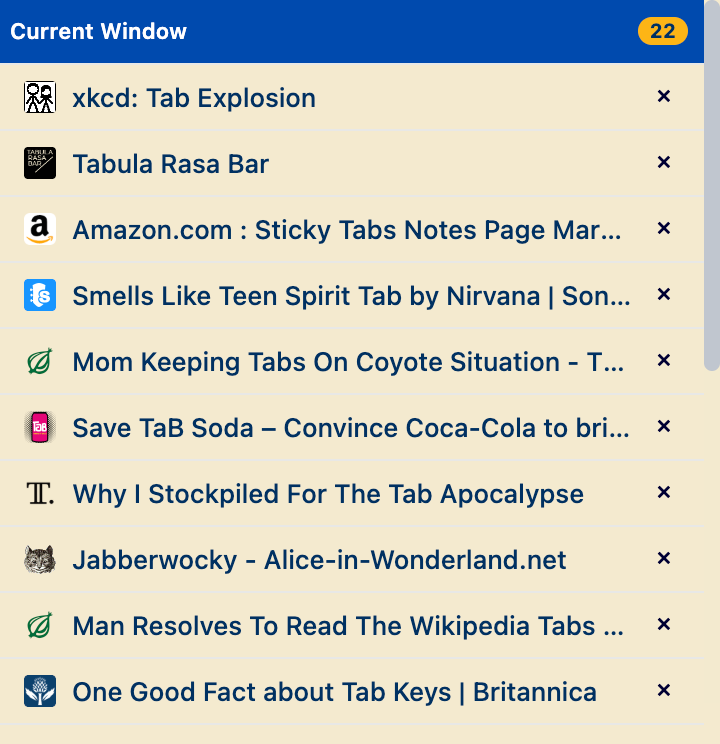
You can use a keyboard shortcut to toggle the display of tab URLs. The setting applies to all windows and persists between sessions.
- Keyboard shortcut: ⌥ + U (Mac) or Alt + U (Win)
Keyboard Shortcuts
| Shortcut | Action | Description |
|---|---|---|
|
⌥ + T (Mac) Alt + T (Win) |
Toggle Side Panel open/closed | Summon or send away the side panel |
|
⌥ + D (Mac) Alt + D (Win) |
Close Duplicates | Close all duplicate tabs while keeping the most recently used version |
|
⌥ + Shift + C (Mac) Alt + Shift + C (Win) |
Combined Actions | Close duplicates, then merge windows |
|
⌥ + U (Mac) Alt + U (Win) |
Toggle URL Visibility | Display or hide tab URLs |
| Customize in chrome://extensions/shortcuts | Merge Windows | Assign your own shortcut to merge all Chrome windows into the current one |
| Customize in chrome://extensions/shortcuts | Sort by Site | Create a shortcut that alphabetizes tabs by site in the current scope |
| Customize in chrome://extensions/shortcuts | Sort by Most Recent | Assign a key combo to reorder tabs so the most recently used appear first |
| Customize in chrome://extensions/shortcuts | Toggle Window View | Pick a shortcut to switch between Current Window and All Windows views |
How to customize shortcuts
- Go to
chrome://extensions/shortcuts(or choose Menu → Extensions → Keyboard shortcuts). - Find Tabberwocky Tab Defenestrator in the list.
- Click the pencil icon (or the shortcut field) beside the desired action.
- Press the key combination you want to assign, then press Enter to confirm.
- Repeat for each action; Chrome saves the shortcuts immediately.