
The Tabberwocky Tab Defenestrator, available at the Chrome Web Store, is your stalwart ally against the chaos of too many tabs in too many places. It's a toolset for rapidly finding and removing the tabs you no longer need and organizing the rest. Here's how to put it to work.
Use this simulation to try out some of the features
Remove the tabs you no longer need
Close Duplicates
Click the
button to remove, in a single glorious sweep, all duplicate tabs from
all windows.2
You can also list your current duplicates by hovering your
mouse over the Close Duplicates button. Try it out on the simulated
version.
Browse and close by tab, site, or window
Use the toggle in the toolbar to switch viewing modes. Site mode groups tabs by domain — useful for closing or accessing tabs on that basis. Window mode mirrors your Chrome windows.3
Close individual tabs
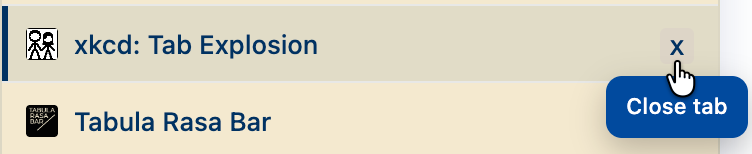
Click individual tab listings to navigate to the respective tab in your window. To close a tab, click x on the far right of the respective listing.
If you change your mind about closure
Cmd+Shift+T (Mac) or Ctrl+Shift+T (Windows/Linux) restores recently closed tabs.
Organize
Sort the current window
Use the button to reorder tabs in your current window based on the time you last accessed them. Helpful for finding your way back after sidequests or climbing out of rabbit holes. The button sorts by site.
Merge Windows
Click to merge everything from everywhere all at once. Each window's tabs arrive in their original order. Pinned tab states are preserved as well.
Gather by site
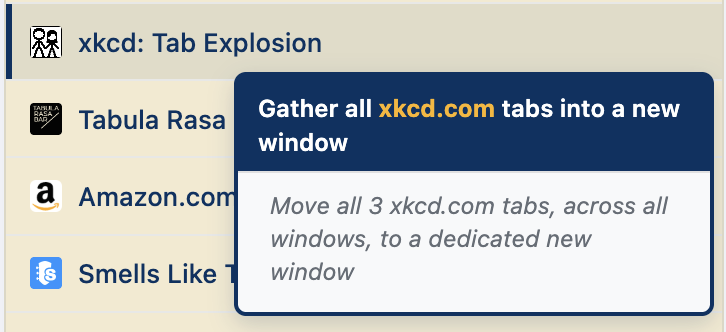
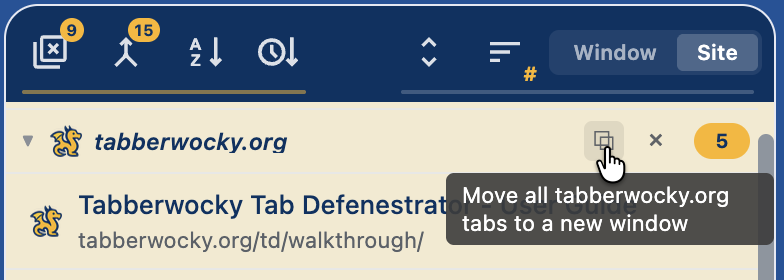
Right-click any tab and choose Gather domain tabs to consolidate all tabs from that site into a dedicated window. In Site mode, you can right click a tab or hover over the site group header to activate the same operation. (Also available in the simulator)
Keyboard shortcuts
| Shortcut | Action |
|---|---|
| Option+T / Alt+T | Open or close the side panel |
| Option+D / Alt+D | Close duplicate tabs across all windows |
| Option+U / Alt+U | Toggle URL visibility |
| Set in chrome://extensions/shortcuts |
Merge Windows Sort by Site Sort by Most Recent Toggle Window / Site mode |
Settings
Access the settings and this walkthrough via the gear icon in the footer.

- Toggle URL visibility beneath tab titles
- Toggle tab preview strips for collapsed windows
- Customize keyboard shortcuts
How to summon the Tabberwocky Tab Defenestrator (aka TTD)
For easy access after installing TTD from the Chrome Web Store, you can pin the TTD icon to your toolbar, or use the keyboard shortcut, Option + T (Mac) or Alt + T (Windows/Linux).
Notes
1 Why defenestrate? Because, browser window and bad puns.
2 Tracking parameters are ignored when matching duplicates, so the same page opened from two different links still counts as a duplicate. Google Workspace docs are distinguished by document ID rather than their full URL.
3 In some cases, distinct properties such as Gmail and Google Docs are grouped separately.
You can try out some of the features on this simulation